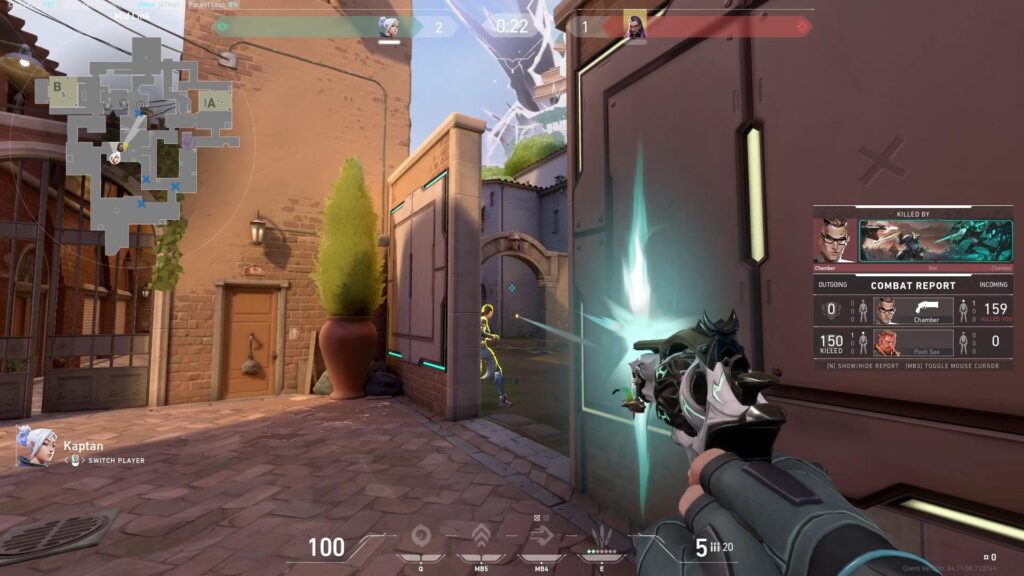
Valorant delivers fast-paced tactical gameplay that rewards quick reactions and clear visibility, yet many players on older or budget hardware face constant frame rate struggles that hinder performance. Low-end PCs, often equipped with integrated graphics or entry-level components, can still achieve smooth gameplay through targeted adjustments that prioritize frame rates without sacrificing core competitiveness. These optimizations draw from established patterns observed across various system configurations and draw on guidance from official sources and performance analyses to deliver consistent gains, sometimes pushing frame rates from the low 30s into the stable 60s or higher.
Understanding Valorant System Requirements for Low-End Hardware
Valorant runs on a wide range of hardware thanks to its efficient engine, but low-end setups require awareness of baseline demands to avoid unnecessary bottlenecks. The official specifications outline minimum requirements that target 30 frames per second on older processors and integrated GPUs, with recommended specs aiming for 60 frames per second on slightly stronger configurations. For instance, systems with an Intel Core i3-4150 or AMD Ryzen 3 1200 paired with basic dedicated graphics meet the threshold for playable performance, while anything below risks frequent drops during intense rounds.
Details from the Valorant PC Specs confirm that 4 GB of RAM and 1 GB of VRAM suffice for entry-level play, though real-world results improve dramatically when background processes stay minimal. The companion support documentation further clarifies that Windows 10 or 11 with specific security features remains essential, as outdated operating systems introduce compatibility drags that compound low hardware limitations. Players on integrated graphics like Intel HD 4000 or AMD Radeon R5 220 notice immediate benefits from aligning settings precisely to these limits, turning marginal performance into reliable output.
Selecting Optimal Resolution and Display Settings
Resolution choices play a central role in frame rate stability on low-end PCs, where higher native displays strain limited GPU resources. Fullscreen mode grants the game exclusive access to the display, reducing input lag and allowing the hardware to focus entirely on rendering frames. Many configurations perform best at 1920×1080 for balanced clarity, though dropping to 1600×900 or even 1280×960 in stretched aspect ratios can unlock additional frames while maintaining competitive visibility on smaller monitors.
Analyses from competitive resources highlight that limiting frame rates in background or menus prevents wasteful resource use during non-play moments. Setting the FPS limit to unlocked or slightly above the monitor’s refresh rate ensures the system pushes as many frames as the hardware allows without artificial caps. The Best VALORANT settings in 2026 emphasizes fullscreen alongside NVIDIA Reflex Low Latency enabled with Boost for compatible cards, which minimizes input delay without taxing the GPU further. These display tweaks alone often deliver noticeable smoothness, especially when combined with aspect ratio adjustments that reduce pixel load.
Recommended In-Game Graphics Settings for Maximum FPS
Graphics settings represent the most direct path to FPS gains on low-end systems, where every visual effect consumes processing power that could otherwise boost frame delivery. Lowering overall quality removes unnecessary details like complex lighting and distant objects, freeing resources for core gameplay elements. Multithreaded Rendering should remain enabled to distribute workload across available CPU cores, a step that consistently improves stability according to performance breakdowns.
Specific recommendations include setting Material Quality, Texture Quality, Detail Quality, and UI Quality all to Low. These changes flatten surfaces and eliminate distracting reflections while preserving enemy outlines and critical map information. VSync stays off to eliminate frame pacing restrictions that introduce lag, and effects such as Vignette, Bloom, Distortion, and Cast Shadows turn off entirely to clear visual clutter and reduce GPU overhead. Anti-Aliasing at None or the lightest MSAA option prevents jagged edges without heavy performance costs, while Anisotropic Filtering at 2x or 4x sharpens angled surfaces with minimal impact.
Improve Clarity can toggle on for sharper images at no measurable frame cost in most cases, though testing remains key. The comprehensive overview in Best Valorant Settings confirms that these low presets on budget rigs reliably increase FPS by prioritizing essentials over aesthetics. Cross-referencing with Best VALORANT Settings in 2026 reinforces the same low-graphics approach favored in pro-level play for cleaner sightlines and higher frame consistency.
Additional Performance Tweaks in Video and Advanced Options
Beyond core graphics, Valorant’s advanced video menu holds further opportunities for low-end optimization. Enabling NVIDIA Reflex Low Latency (or equivalent AMD options) reduces system latency by synchronizing frame submission with the display, providing a competitive edge without frame rate penalties on supported hardware. Experimental Sharpening and other post-processing filters should stay disabled unless specific visibility tests prove otherwise, as they add negligible benefits relative to their resource draw.
Frame rate monitoring tools built into the game or third-party overlays help validate changes in real time, revealing whether adjustments maintain stability during ability usage or site executes. The Best Valorant settings for optimized PC performance details how selective high settings like certain materials cause negligible drops on mid-range hardware yet prove detrimental on low-end setups, underscoring the need for uniform low presets in constrained environments.
Windows and System-Level Optimizations for Sustained Performance
System-wide adjustments complement in-game changes by ensuring the operating system does not interfere with Valorant’s resource allocation. Switching the power plan to High Performance or Ultimate Performance keeps the CPU and GPU at peak clocks rather than throttling for energy savings. Updating graphics drivers through official manufacturer channels eliminates outdated optimizations that commonly cause stuttering on budget hardware.
Closing background applications prevents memory contention, while disabling unnecessary Windows features like Game Bar or hardware-accelerated GPU scheduling (when it conflicts) streamlines operation. Fullscreen optimizations disabled via the Valorant executable properties further reduces overlay interference. These steps, echoed across multiple optimization resources, create headroom that translates directly into higher average frames and fewer drops during clutch situations.
The older but still relevant Valorant settings guide from PC Gamer highlights similar driver and power management priorities that remain foundational even years later. Combined with official Riot documentation, these practices establish a stable foundation that low-end configurations rely upon for competitive viability.
GPU Control Panel Adjustments for NVIDIA and AMD Users
Dedicated graphics users gain extra FPS through manufacturer control panels. For NVIDIA cards, setting power management to Maximum Performance and low latency mode to Ultra ensures the GPU prioritizes Valorant over other tasks. Texture filtering quality at High Performance and vertical sync off align with in-game choices to avoid conflicts.
AMD users follow parallel paths by configuring Radeon Software for similar performance biases. These panel tweaks prevent the driver from applying conservative defaults that limit frame output on entry-level GPUs. When integrated with the low in-game settings, the combined effect often doubles frame rates compared to default configurations on hardware near the minimum specs.
Monitoring Tools and Testing Strategies
Consistent testing after each change verifies real improvements rather than perceived gains. In-game FPS counters, alongside tools like MSI Afterburner, display live metrics for CPU, GPU, and memory usage. Players observe patterns during practice matches to isolate whether drops stem from specific maps or agent abilities, allowing fine-tuning without guesswork.
Benchmarking before and after optimizations provides objective data, revealing gains of 20 to 50 percent or more depending on the starting hardware. This methodical approach ensures adjustments remain tailored to individual low-end setups rather than generic assumptions.
Comparison of Key Settings for Low-End FPS Optimization
Optimized Settings Overview: Low-End vs Standard Configurations
| Setting Category | Low-End Recommended Value | Standard/Default Value | Primary Benefit for Low-End PCs | Typical FPS Impact |
|---|---|---|---|---|
| Display Mode | Fullscreen | Windowed or Borderless | Exclusive GPU access, lower input lag | +10-20% stability |
| Multithreaded Rendering | On | On (default) | Better CPU utilization | +15-30 frames |
| Material/Texture/Detail/UI Quality | All Low | Medium or High | Reduced shader and texture load | +40-80 frames |
| VSync | Off | On | Removes frame cap and lag | +20-50 frames |
| Anti-Aliasing | None or MSAA 2x | MSAA 4x | Minimal edge smoothing with low cost | +15-25 frames |
| Vignette/Bloom/Distortion/Cast Shadows | All Off | On | Clears visual clutter, frees GPU | +10-30 frames |
| NVIDIA Reflex | On + Boost (if available) | Off | Reduced system latency | No direct FPS gain, smoother feel |
| Resolution | 1600×900 or 1280×960 | 1920×1080 | Lower pixel count | +30-60 frames |
This table illustrates how targeted reductions create headroom on constrained hardware while preserving essential visibility for competitive play.
Common Pitfalls and Long-Term Maintenance
Low-end optimizations require periodic review because driver updates or game patches occasionally shift performance profiles. Re-testing after major Valorant updates prevents unexpected regressions. Dust accumulation and thermal throttling also erode gains over time, making basic hardware maintenance an ongoing part of sustained high FPS.
Avoid overclocking without adequate cooling, as instability on budget systems can introduce crashes that outweigh any temporary frame boosts. Instead, focus on clean, stable configurations that deliver reliable performance across entire match sessions.
FAQ: Addressing Frequent Questions About Valorant FPS Optimization on Low-End PCs
Does lowering all graphics settings make Valorant unplayable visually?
No. Low presets remove cosmetic clutter while keeping enemy models, abilities, and map geometry fully visible. Many competitive players deliberately choose these settings precisely because they enhance clarity rather than detract from it.
How much FPS improvement can a typical low-end PC expect?
Gains vary by exact hardware, but uniform low settings plus system tweaks commonly add 30 to 100 frames per second. Systems hovering near minimum specs frequently move from sub-40 averages to stable 60-plus ranges.
Should players use stretched resolutions for extra frames?
Stretched 4:3 resolutions like 1280×960 can provide measurable FPS lifts and wider effective field of view for some, though native 16:9 maintains better image fidelity. Testing both determines the best balance for individual monitors.
Do background applications really affect Valorant performance significantly?
Yes. Even lightweight programs consume RAM and CPU cycles that Valorant could otherwise use. Closing them before launch routinely reduces stuttering and elevates minimum frame rates.
Is NVIDIA Reflex necessary on low-end hardware?
When the GPU supports it, Reflex reduces input lag without costing frames, making it worthwhile regardless of overall power. AMD equivalents offer similar advantages.
Will these settings remain effective after future Valorant updates?
Core principles endure across patches, though occasional re-testing after major releases ensures continued alignment. Official specs and community analyses provide ongoing reference points.
Can RAM upgrades help more than graphics tweaks?
On systems with only 4 GB or 8 GB, increasing to 16 GB often yields larger stability improvements than graphics alone, especially during ability-heavy fights.
Are config file edits required for maximum performance?
Manual GameUserSettings.ini adjustments can push settings lower than the in-game menu allows, but they risk instability and require careful application. Most low-end users achieve sufficient results through menu options alone.
Conclusion: Achieving Competitive Performance on Limited Hardware
Optimizing Valorant for low-end PCs transforms challenging hardware into a capable competitive platform through deliberate, evidence-based adjustments. From aligning with official system requirements and selecting appropriate resolutions to applying uniform low graphics presets and executing system-level tweaks, each step compounds to deliver higher, more stable frame rates. The combination of fullscreen mode, disabled visual effects, enabled multithreading, and Reflex technology consistently unlocks performance that supports precise aiming and rapid decision-making.
Long-term success depends on ongoing monitoring, driver maintenance, and periodic validation against current game patches. While no single change guarantees Radiant-level play, these optimizations remove technical barriers so skill and strategy can take center stage. Players who implement these settings methodically often report smoother matches, fewer frustrating drops, and an overall more enjoyable experience even on aging or budget systems. Starting with the recommended graphics profile and layering Windows and control panel enhancements provides a clear, repeatable path toward reliable high-FPS Valorant gameplay.