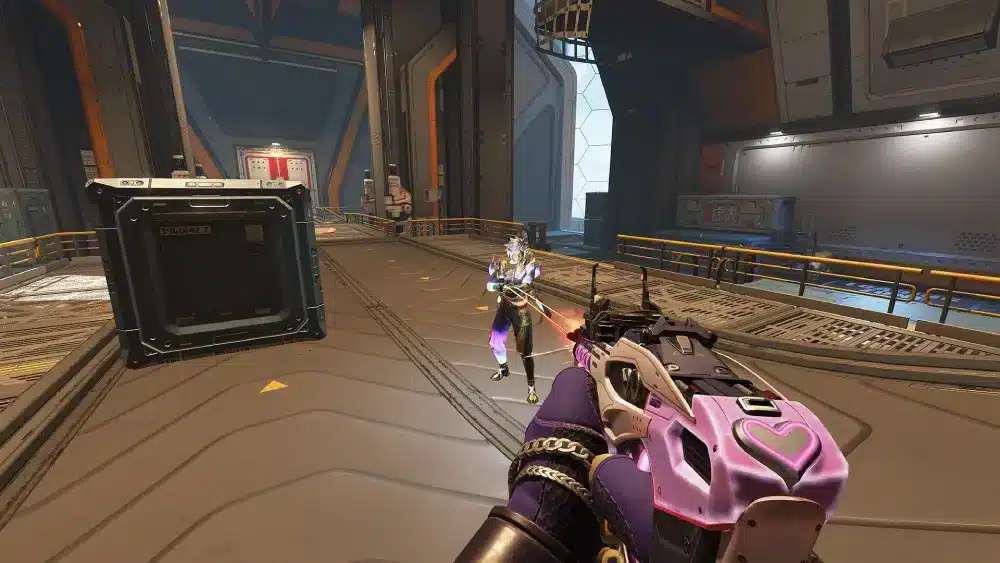
Apex Legends delivers one of the most dynamic battle royale experiences on PC, blending fast-paced action, strategic team play, and unique character abilities in a constantly evolving arena. For newcomers jumping into the game on keyboard and mouse, the learning curve can feel steep at first, but the precision and responsiveness of PC controls make it one of the most rewarding platforms once fundamentals click. This guide breaks down everything beginners need to know, from initial setup to fine-tuning settings that enhance performance, visibility, and aim consistency. Players who invest time in these areas often see quicker improvements in survival rates and overall enjoyment across matches.
The game revolves around squads of three competing in large-scale maps where positioning, resource management, and coordination determine outcomes. Unlike traditional shooters, Apex emphasizes movement tech, ability synergy, and ring management alongside raw gunplay. Understanding these layers early prevents common frustrations and builds a solid foundation for climbing ranks or simply having more fun in unranked queues.
Getting Started: System Requirements and Installation
Before diving into a match, confirming hardware compatibility ensures smooth gameplay without unexpected stutters or crashes. Apex Legends runs efficiently on a wide range of PCs, but meeting the recommended specifications helps maintain stable frame rates during intense fights.
The minimum requirements include a 64-bit Windows 10 operating system, an Intel Core i3-6300 or AMD FX-4350 processor, 6GB of RAM, and a graphics card like the NVIDIA GTX 950 or AMD Radeon HD 7790 with at least 2GB of VRAM. Storage needs about 75GB of free space. These specs allow playable performance at lower settings, though competitive edges come from higher configurations.
For optimal results at 1080p and 60+ FPS, the recommended setup features a 64-bit Windows 10 OS, Intel i5 3570K or equivalent processor, 8GB RAM, and a NVIDIA GeForce GTX 970 or AMD Radeon R9 290 with 8GB VRAM. Higher-end systems with modern GPUs push frame rates into the 144Hz or 240Hz range, which many experienced players prefer for reduced input lag. Checking these details upfront avoids performance bottlenecks later.
Installation happens through the EA app or Steam. Once downloaded, creating or linking an EA account unlocks the full roster progression. New players receive access to a welcome challenges system that introduces core mechanics gradually while unlocking additional characters.
Keyboard and Mouse Controls: Building Muscle Memory
PC controls in Apex Legends offer unmatched precision compared to other platforms, particularly for tracking and flick shots. The default layout works well for most, but small adjustments improve flow during chaotic engagements.
Core bindings include WASD for movement, mouse for aiming and firing, spacebar for jumping, and left shift for sprinting. Crouch often sits on left control or C, while tactical and ultimate abilities map to Q and Z by default. Many players rebind ultimate to a mouse side button for faster activation without removing a finger from movement keys.
The ping system proves invaluable for communication. Holding the mouse wheel brings up contextual pings for enemies, loot, or directions. This feature reduces reliance on voice chat while keeping squads coordinated. Practicing these inputs in the firing range accelerates adaptation, as consistent muscle memory translates directly to better decision-making under pressure.
Observed patterns in player progression show that those who experiment with custom keybinds early—such as placing melee or grenade on easy-to-reach keys—avoid fumbling during critical moments. The goal remains keeping hands on core movement and aim inputs at all times.
Optimizing Graphics Settings for Performance and Clarity
Graphics settings strike a balance between visual fidelity and competitive advantage. High frame rates reduce perceived input delay and improve reaction times, which explains why many players prioritize performance over maximum detail.
Start with the video tab in settings. Set display mode to full screen for the lowest latency, resolution to native monitor values, and field of view (FOV) between 90 and 110. A common competitive choice lands at 110, expanding peripheral vision without distorting distant targets excessively. Sprint view shake set to minimal minimizes unnecessary camera motion during runs.
Advanced options offer the biggest gains. Disable V-Sync unless screen tearing appears. Enable NVIDIA Reflex for compatible GPUs to cut system latency. Turn anti-aliasing off, texture streaming budget to medium, and ambient occlusion quality to disabled. Sun shadow coverage, sun shadow detail, spot shadow detail, volumetric lighting, and dynamic spot shadows should all drop to low or disabled. Model detail, effects detail, impact marks, and ragdolls benefit from low settings as well. These changes free up resources for higher FPS while keeping player models and environmental cues sharp.
Textures can remain at medium or high without heavy performance hits, preserving weapon and character details that aid identification at range. Players monitoring in-game FPS counters often notice 20-50 percent gains after applying these tweaks, especially on mid-range hardware. Testing in the firing range confirms stability before queuing into live matches.
Audio Settings: Gaining the Hearing Advantage
Sound design in Apex Legends provides crucial intel on enemy positions, ability usage, and approaching threats. Proper audio configuration turns subtle cues into actionable information.
In the audio tab, max out master volume and sound effects volume while lowering dialogue, music, and lobby music. This prioritization amplifies footsteps, gunshots, and tactical sounds over background noise. EQ adjustments further clarify high-frequency elements like distant reloads or zipline activations.
Windows-level tweaks complement in-game options. Setting the headset or speakers to 44.1kHz or 48kHz sample rates and disabling audio enhancements reduces latency. Competitive players frequently report clearer spatial awareness after these adjustments, allowing earlier reactions to third-party engagements or flanking attempts.
Sensitivity and Aim: Finding the Right Feel
Mouse sensitivity defines how quickly the crosshair responds to hand movements. No universal perfect setting exists, but patterns from top players provide reliable starting points.
A good baseline uses 800 DPI with in-game sensitivity between 1.2 and 1.5, yielding an eDPI around 960-1200. Lower sensitivities favor precision tracking and long-range fights, while slightly higher values support aggressive close-quarters play. The ADS multiplier stays at 1.0 for consistent hip-fire to scoped transitions. Mouse acceleration remains off to ensure predictable movement.
Pro player data reveals averages hovering near 1.3 sensitivity at 800 DPI and 110 FOV. Examples include setups from ImperialHal at 1.1 sensitivity or Genburten at 1.5, all emphasizing low-to-medium ranges for consistency.
Testing occurs in the firing range by tracking moving targets, flicking between dummies, and practicing recoil patterns. Gradual adjustments—changing sensitivity by 0.1 increments—help dial in comfort without disrupting established habits. Many improve aim noticeably within a few sessions of focused practice.
Field of View and Additional Video Tweaks
Beyond basic graphics, FOV influences awareness more than most realize. Higher values reveal more of the battlefield, aiding map navigation and flank detection, though they can make targets appear smaller. The 90-110 range suits most PCs without performance penalties.
Additional options like lighting effects or color correction remain personal but often stay default unless specific visibility issues arise. Disabling motion blur eliminates unnecessary smoothing during rapid turns.
Gameplay Fundamentals: From Hot Drop to Ring Closure
Success begins with smart drops. Squads receive assigned points of interest, spreading teams across the map. Landing near—but not directly on—teammates allows coordinated looting without overcrowding buildings. Scanning for nearby threats and using pings keeps everyone aligned.
Inventory management requires constant attention. Prioritize matching ammo, shield cells, med kits, and larger backpacks. Grenades offer versatile utility for flushing enemies or creating space. Health and shields must stay topped off, as downed states become recoverable only with timely revives before round four.
Movement separates average players from those who dominate rotations. Holstering weapons during runs, sliding down slopes, and utilizing zip lines or launch pads maintains momentum. Staying with the squad prevents isolated ambushes, while ring awareness avoids unnecessary damage.
Selecting Legends and Building Team Synergy
New players start with Bangalore, Lifeline, and Wraith unlocked, gaining Bloodhound, Gibraltar, and Pathfinder through welcome challenges. Each legend belongs to a class with distinct perks—offensive for aggressive pushes, support for sustain, recon for information gathering. Experimenting with two or three favorites builds familiarity faster than swapping constantly.
Team composition matters. A balanced squad covers scanning, healing, and mobility. Communication via pings highlights enemy locations or loot opportunities, turning individual actions into coordinated strikes.
Weapon Mastery and Loadouts
Weapons fall into categories with specific strengths. Light ammo assault rifles offer versatility, while heavy or energy options excel in sustained fire. Attachments improve handling, and practicing recoil in the firing range reveals patterns unique to each gun. Early loadouts focus on reliable close-to-mid range pairings until map flow becomes intuitive.
Avoiding Common Pitfalls
Beginners frequently overcommit to fights without backup or neglect ring positioning. Looting too long in hot zones leaves squads exposed, while ignoring audio cues misses early warnings. Consistent small improvements—such as checking minimaps regularly or practicing ability timing—compound into noticeable rank gains over time.
Optimal Settings Comparison: Low, Medium, and Competitive Presets
The table below compares graphics presets to illustrate trade-offs in performance and visuals. Competitive setups favor maximum FPS, while medium options suit balanced play.
| Setting Category | Low Preset (Max FPS Focus) | Medium Preset (Balanced) | Competitive Preset (Pro-Inspired) |
|---|---|---|---|
| Display Mode | Full Screen | Full Screen | Full Screen |
| Field of View | 90 | 100 | 110 |
| V-Sync | Disabled | Disabled | Disabled |
| NVIDIA Reflex | Enabled (if available) | Enabled | Enabled + Boost |
| Textures | Low | Medium | Medium/High |
| Shadows & Effects | All Low/Disabled | Mixed Low/Medium | All Low/Disabled |
| Anti-Aliasing | Off | Off | Off |
| Expected FPS (Mid-Range PC) | 120+ | 90-120 | 144+ |
| Visual Clarity | Reduced detail | Good environmental cues | Sharp player models, minimal distractions |
Adjust based on hardware and preference. Monitoring FPS in-game validates choices.
FAQ: Answering Common Beginner Questions
What FOV should beginners use on PC?
Most settle between 90 and 110. Higher values expand awareness for better rotations, though testing in matches reveals personal comfort levels.
How do I improve aim quickly?
Spend dedicated time in the firing range practicing tracking and flick shots. Start with recommended sensitivity ranges and refine gradually.
Are default controls sufficient?
Yes for starting out, but rebinding abilities or crouch to more accessible keys enhances comfort during extended sessions.
Does graphics quality affect competitive play?
Lower settings boost FPS and reduce visual clutter, giving clearer sightlines on enemies. Performance consistently outweighs aesthetics for serious players.
How important is audio for new players?
Extremely. Proper volume balancing reveals footsteps and ability sounds that visuals alone miss, preventing many unnecessary deaths.
When should beginners try ranked mode?
After mastering basics in unranked and feeling confident with two to three legends. Early focus on fundamentals yields better long-term results than rushing tiers.
Can PC settings change with hardware upgrades?
Absolutely. Higher-end GPUs allow slightly elevated textures without sacrificing frame rates, while monitors with high refresh rates reward sensitivity tweaks for smoother tracking.
What is the best way to practice movement?
Utilize the firing range and mixtape modes. Sliding, wall-jumping, and zip-line usage become instinctive through repetition in low-pressure environments.
Wrapping Up: Building Lasting Success in Apex Legends
Apex Legends on PC rewards players who combine mechanical skill with strategic awareness. By addressing system requirements first, optimizing every setting category from graphics to audio, and internalizing gameplay loops through consistent practice, beginners transform initial struggles into reliable performance. The firing range serves as the ideal laboratory for sensitivity testing, ability timing, and recoil control before live matches test those skills under pressure.
Team coordination and map knowledge grow naturally as matches accumulate. Reviewing death replays highlights specific areas for improvement, such as better ring rotations or more effective pinging. Resources like official guides on abilities, weapons, and game modes provide deeper dives whenever questions arise.
Ultimately, the journey involves steady refinement rather than overnight mastery. Players who approach each session with clear goals—whether testing a new sensitivity or focusing on legend synergy—accumulate advantages that compound over time. Drop into the next match equipped with these foundations, stay observant of squad dynamics, and watch improvement follow. The arena awaits, and consistent application of these principles turns every game into an opportunity for growth.