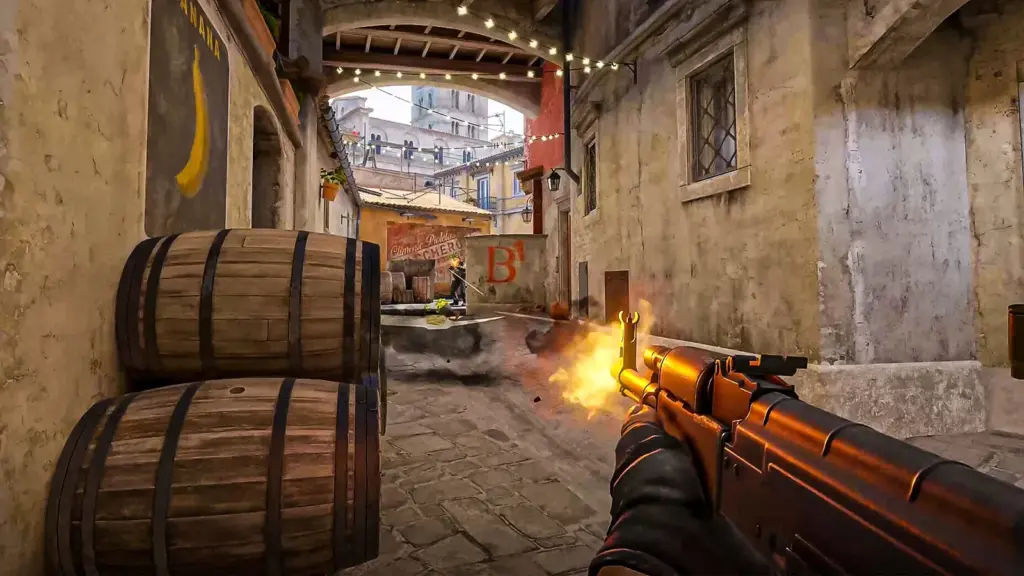
Counter-Strike 2 demands precise control and lightning-fast reactions, where even minor frame drops or input delays can cost rounds. Optimizing settings unlocks consistently high frame rates, reduced latency, and sharper visibility that keeps players competitive across Premier, FACEIT, and casual matches alike. These adjustments balance performance with clarity, ensuring the game runs buttery smooth on a wide range of hardware while preserving the information needed to spot enemies and land shots.
Understanding Smooth Gameplay in CS2
Smooth gameplay in Counter-Strike 2 revolves around three core pillars: high and stable frame rates, minimal system latency, and clear visual feedback. Frame rates above 144 FPS paired with a matching monitor refresh rate create fluid motion that makes tracking targets feel natural. Input lag under 20 milliseconds lets actions register instantly, while optimized visuals highlight player models and shadows without unnecessary distractions. Players who ignore these factors often experience stuttering during intense firefights or delayed peeks that turn winnable duels into losses. The right configuration adapts to hardware capabilities while prioritizing competitive advantages observed across professional play and community benchmarks.
Hardware Foundations for Reliable Performance
Every optimization starts with hardware that meets or exceeds the demands of Counter-Strike 2. The official system requirements on Steam list Windows 10, a quad-core CPU equivalent to an Intel Core i5-750, 8 GB RAM, and a DirectX 11-compatible GPU with at least 1 GB VRAM as the baseline for launching the game. Real-world smooth performance, however, benefits from modern upgrades: a six-core or better CPU like an Intel Core i5 or AMD Ryzen 5 series, 16 GB RAM, and a GPU such as the NVIDIA GTX 1060 or AMD RX 580 for stable 144+ FPS at 1080p. An SSD cuts loading times dramatically, and a high-refresh-rate monitor (144 Hz or higher) unlocks the full potential of elevated frame rates. Systems falling short in any area benefit from closing background applications and ensuring drivers stay updated through official vendor tools. These foundations prevent thermal throttling and ensure consistent frame pacing even in crowded maps like Mirage or Ancient.
Optimizing Video Settings for Maximum FPS
Video settings form the backbone of smooth CS2 performance by directing GPU resources toward frame production rather than cosmetic effects. Set display mode to fullscreen to minimize input lag and maximize frame delivery. Resolution at 1920×1080 or native works for most setups, though competitive players often drop to 1280×960 in 4:3 stretched aspect ratio to enlarge models and boost FPS further. Refresh rate must match the monitor’s maximum supported value, such as 144 Hz or 240 Hz, to eliminate screen tearing and motion blur. Brightness between 100% and 110% improves visibility in darker areas without washing out contrast. As outlined in the detailed CS2 options guide on ProSettings.net, these choices deliver higher frame rates without compromising the ability to read the environment quickly.
Advanced Graphics Tweaks for Visibility and Frame Stability
Advanced video options fine-tune the trade-off between image quality and performance to favor competitive clarity. Enable boost player contrast to make enemy outlines pop against backgrounds with almost no performance cost. Disable wait for vertical sync entirely, as it introduces noticeable input delay by capping frames to the monitor refresh rate. Multisampling anti-aliasing mode at none or 2x MSAA keeps edges clean without the heavy FPS penalty of higher values. Global shadow quality at low paired with dynamic shadows set to all maintains essential shadow information for peeking corners while freeing GPU cycles. Model and texture detail at low or medium simplifies distant elements for better long-range spotting, and texture filtering mode at anisotropic 4x or 16x sharpens surfaces at negligible cost. Shader detail, particle detail, and ambient occlusion at low or disabled cut through smoke and explosion clutter, while high dynamic range at performance or quality avoids grainy artifacts in shadowed spots. FidelityFX super resolution stays disabled unless on lower-end hardware needing a light upscaling boost. NVIDIA Reflex low latency set to enabled or enabled plus boost reduces system-wide lag, as confirmed across multiple performance analyses. The best CS2 settings overview on PCGamesN highlights how these tweaks produce averages of 200+ FPS on mid-to-high-end rigs with stable 1% lows that prevent stuttering.
Console Commands and Launch Options for Extra Performance Gains
Console commands and launch options unlock hidden optimizations that push frame rates and stability even higher. Enable the developer console in game settings for quick access. Common launch options added in Steam properties include -novid to skip intro videos, -high to prioritize CPU resources, and +fps_max 0 to remove the in-game cap entirely. Inside the console, commands like cl_forcepreload 1 preload map assets for fewer hitches, r_dynamic 0 disables unnecessary dynamic lighting, and mat_queue_mode 2 forces multi-threaded rendering on multi-core CPUs. Net_graph 1 displays real-time FPS, ping, and loss data for ongoing monitoring. Additional useful lines such as cl_updaterate 128 and cl_cmdrate 128 ensure smooth server communication on 128-tick matchmaking. The CS2 performance commands guide on Steam Community details these adjustments, showing measurable reductions in micro-stutters and improved frame-time consistency when applied correctly.
Mouse Sensitivity and Input Settings for Precision Control
Input settings translate hardware power into accurate aim without overshooting or sluggish tracking. Sensitivity remains a personal choice but aligns best with professional averages when eDPI falls between 700 and 1200. A DPI of 400 or 800 combined with in-game sensitivity around 2.0 to 3.0 delivers the median pro feel, allowing precise flicks and smooth crosshair placement. Zoom sensitivity multiplier at 1.0 keeps scoped weapons consistent. Raw input enabled and mouse acceleration disabled ensure 1:1 movement from pad to screen. Polling rate at 1000 Hz or higher on modern mice further reduces input lag. These configurations, as recommended in the comprehensive settings breakdown on Dexerto, help maintain control during rapid strafes and spray transfers.
Network and Audio Configurations for Lag-Free Matches
Network stability prevents packet loss from disrupting smooth movement and shooting. Set max acceptable matchmaking ping to 80–100 to favor nearby servers, and keep max acceptable game traffic bandwidth unrestricted. Buffering to smooth over packet loss at none avoids artificial delays unless severe jitter appears on the net graph. Audio settings sharpen enemy footsteps and gunshots for faster reaction times. EQ profile at crisp emphasizes high frequencies, while L/R isolation between 50% and 80% clarifies directional cues without muddling front-to-back positioning. Perspective correction off mimics the familiar CS:GO-style audio binary. Round start, end, and MVP volumes lowered to zero eliminate distractions that mask critical sounds. The FPS-focused settings guide on Total CS explains how these choices reduce perceived latency and improve sound-based decision-making in every round.
Optimal Settings Comparison Across Hardware Configurations
| Hardware Tier | Resolution & Aspect | Key Graphics Settings | Expected FPS Range (1080p) | NVIDIA Reflex | Target Use Case |
|---|---|---|---|---|---|
| Entry-Level (GTX 1650, i5-10th gen, 16 GB RAM) | 1280×960 4:3 Stretched | All Low, MSAA None, Shadows Low, Dynamic All | 120–180 | Enabled | Stable matchmaking, budget builds |
| Mid-Range (RTX 3060, Ryzen 5 5600, 16 GB RAM) | 1920×1080 16:9 Native | Low/Medium mix, MSAA 2x, Shadows Medium | 200–300 | Enabled + Boost | Premier and FACEIT ladders |
| High-End (RTX 4070+, i7/Ryzen 7, 32 GB RAM) | Native 1440p or 1080p | Medium/High select, MSAA 4x, Shadows All | 300–500+ | Enabled + Boost | Pro-level practice and streaming |
| Ultra (RTX 4090, latest CPU, 32+ GB RAM) | Native High Refresh | Custom balanced, higher particles if desired | 500+ uncapped | Enabled + Boost | Maximum smoothness and future-proofing |
This table illustrates how settings scale with hardware while maintaining competitive visibility and frame stability. Adjust based on actual benchmarks using in-game net_graph or third-party overlays.
Troubleshooting Common Performance Issues
When smoothness falters, systematic checks restore performance quickly. Monitor temperatures with tools like HWMonitor to rule out thermal throttling. Verify that the game runs on the dedicated GPU rather than integrated graphics through NVIDIA or AMD control panels. Update GPU drivers and Windows to the latest versions for optimized DirectX handling. Close resource-heavy background apps like browsers or overlays. If 1% lows drop sharply, lower resolution or disable particle detail first. Network spikes often trace back to Wi-Fi; a wired connection eliminates most jitter. These steps, combined with the settings above, address the majority of reported frame-time inconsistencies.
FAQ
What resolution gives the best FPS in CS2 without losing too much clarity?
Lower resolutions like 1280×960 in 4:3 stretched often yield 20–40% more frames than native 1080p while enlarging models for easier tracking, though native 16:9 preserves accurate proportions for players who prefer it.
Should I use NVIDIA Reflex, and what mode works best?
NVIDIA Reflex at enabled or enabled plus boost reduces system latency significantly on supported cards, with the boost mode offering extra gains on high-end systems that maintain ample headroom in frame rates.
How do I remove the FPS cap entirely?
Set maximum FPS in game and menus to 0 or use the console command fps_max 0; this lets the game run as fast as hardware allows, provided the monitor refresh rate can display the extra frames.
Is stretched resolution still viable for competitive play in 2026?
Yes, many players continue using 4:3 stretched because it widens enemy models horizontally and boosts performance, though it requires fullscreen mode and graphics card scaling set to fullscreen.
Does lowering shadows hurt gameplay?
Global shadow quality at low paired with dynamic shadows on all preserves the ability to see enemy silhouettes in key spots while delivering substantial FPS gains compared to higher settings.
What audio EQ profile helps hear footsteps clearest?
Crisp EQ boosts high-frequency sounds like footsteps and reloads, making directional audio easier to parse during gunfights.
How often should settings be re-tested after updates?
After every major patch, as Valve occasionally adjusts rendering or lighting that can shift optimal values slightly.
Can console commands improve frame pacing on older CPUs?
Commands like mat_queue_mode 2 and cl_disable_ragdolls 1 free CPU resources and reduce micro-stutters on systems with fewer cores.
Conclusion
Counter-Strike 2 rewards players who invest time in tailored settings that deliver consistently high frame rates, low latency, and clear visuals tailored to their hardware. From matching system requirements and choosing the right resolution to fine-tuning advanced graphics, console commands, mouse input, and audio cues, each adjustment compounds into noticeably smoother gameplay that translates directly to better aim, faster reactions, and higher win rates. The comparison across hardware tiers demonstrates that smooth performance remains achievable whether running on entry-level rigs or flagship setups. Regular monitoring with net_graph and minor tweaks after updates keep the experience optimal as the game evolves. Applying these evidence-based configurations positions any player to focus fully on strategy and execution rather than fighting technical limitations. Take the settings outlined here, test them in a deathmatch or practice session, and refine until movement feels effortless and every shot lands with confidence—the difference in fluidity will be immediate and lasting.