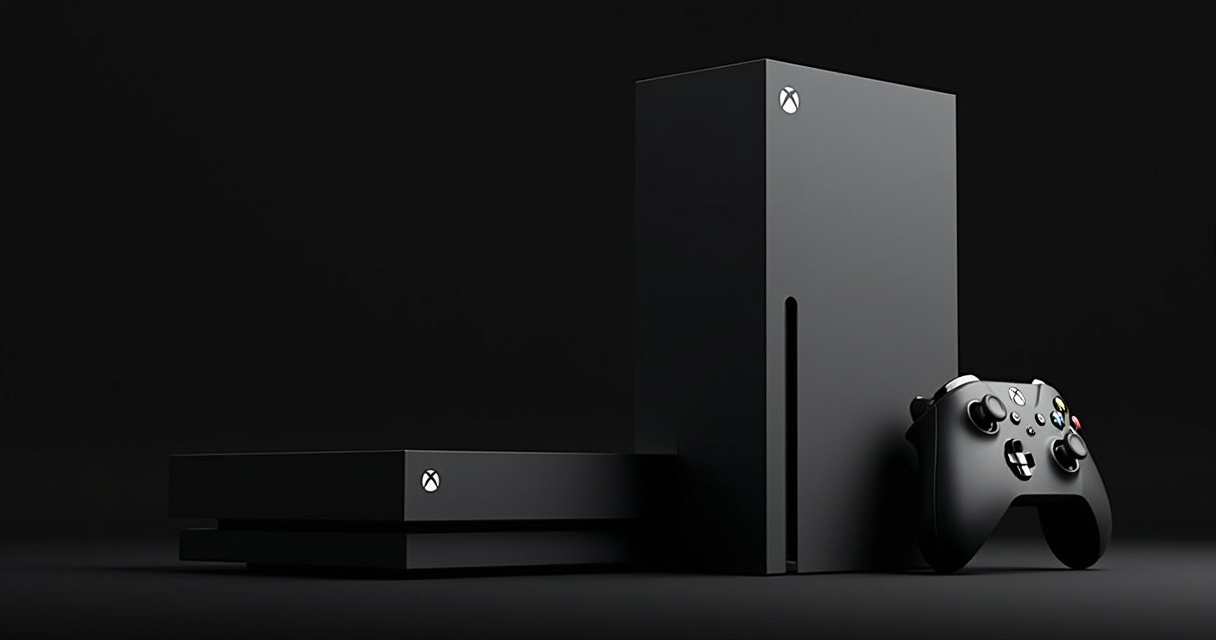
The Xbox Series X represents a significant leap in gaming performance, driven primarily by its high-speed Custom NVMe SSD. While this storage architecture ensures lightning-fast load times and seamless asset streaming, the physical capacity of the internal drive—802GB of usable space—often feels restrictive given the increasing file sizes of modern AAA titles. Effectively balancing game libraries requires a strategic approach to data management and an understanding of how to prepare for substantial software updates before they go live. Mastering how to manage SSD storage space and pre-load massive day one patches on Xbox Series X consoles is essential for maintaining a responsive and ready-to-play gaming environment.
Understanding the Xbox Series X Storage Architecture
The internal SSD is the heartbeat of the console, specifically optimized for the Xbox Velocity Architecture. Unlike traditional mechanical hard drives, this storage solution is integrated directly into the system’s I/O throughput, allowing for the rapid decompression of game assets. Because this hardware is proprietary and specialized, users cannot replace the internal drive. Consequently, managing the existing space involves a mix of offloading older titles and optimizing which games occupy the high-speed internal partition.
When a game is optimized for the Series X, it generally requires the internal SSD or an official Storage Expansion Card to function properly. Standard external USB drives, while capable of storing Series X games, cannot run them directly. This distinction is critical when deciding which titles to move to external storage versus which should remain on the primary drive.
Strategies to Manage SSD Storage Space
Effective storage management begins with regular audits of installed applications. The console provides a detailed breakdown of space consumption within the “Manage storage” menu. Here, users can identify games that are no longer in active rotation.
- Move, Don’t Delete: If a game is rarely played but might be revisited, utilize an external USB 3.1 hard drive to offload the files. Transferring a game back to the internal SSD is significantly faster than re-downloading a 100GB title from the internet.
- Identify Smart Delivery Conflicts: Some titles offer both backward-compatible versions and Series X/S optimized versions. Ensure only the optimized version is installed to save space.
- Remove Unnecessary Add-ons: Many modern titles include high-resolution texture packs or language files that are not strictly necessary for every player. Navigate to “Manage game and add-ons” to selectively uninstall these components.
- Utilize Expansion Cards: For users with extensive libraries, the official Seagate or Western Digital expansion cards mimic the performance of the internal SSD, effectively doubling the high-speed capacity without sacrificing the Velocity Architecture benefits.
Comparison Table: Storage Options for Xbox Series X
| Storage Type | Performance | Can Run Series X Games? | Best Use Case |
|---|---|---|---|
| Internal SSD | Maximum | Yes | Active, high-performance titles |
| Expansion Card | Maximum | Yes | Extending high-speed capacity |
| External USB HDD/SSD | Moderate | No | Archiving games for future play |
How to Pre-Load Massive Day One Patches
The phenomenon of massive day one patches has become standard practice in the industry. These updates often contain critical bug fixes and performance optimizations that are finalized after the physical disc manufacturing process or the initial digital upload. Pre-loading these files ensures that the console is ready for immediate gameplay upon release.
The Xbox ecosystem utilizes a “Pre-install” feature for digital purchases. When a game is pre-ordered, the console downloads the bulk of the base files well in advance. To ensure the day one patch is also captured:
- Enable Instant-On Mode: Navigate to Settings > General > Power options and select “Sleep” mode. This allows the console to download updates and patches in the background while the system is powered down.
- Keep “Keep my games & apps up to date” Enabled: Ensure this setting is toggled on in the System > Updates menu. This allows the console to automatically pull patch data as soon as the servers release it.
- Manual Check: For physical disc users, inserting the disc early often triggers a prompt to update. If the game is pre-ordered digitally, the system will typically queue the patch automatically once the pre-load window opens, usually 48 to 72 hours before the global launch.
Optimizing Network Performance for Updates
Even with the best storage management, a slow internet connection can hinder the ability to apply large day one patches. To maximize download speeds, consider a wired Ethernet connection rather than relying on Wi-Fi. If Wi-Fi is the only option, ensure the console is utilizing the 5GHz frequency band, which provides greater bandwidth and less interference than the 2.4GHz band.
Furthermore, pausing other active downloads or network-heavy applications on the same local network can prioritize the console’s bandwidth. If a patch is exceptionally large, initiating the download during off-peak hours can prevent network congestion from slowing down the process.
Frequently Asked Questions
Can I run Xbox Series X games from a standard external USB hard drive?
No, games optimized for the Series X require the speed of the internal SSD or the official Storage Expansion Card. Standard USB drives can only be used to store or archive these games.
Why does my console show less than 1TB of storage?
The system software, operating system features, and reserved partitions for the Velocity Architecture occupy a portion of the total capacity, leaving approximately 802GB available for user content.
Will my console download patches if it is turned off?
Yes, provided the console is set to “Sleep” mode and the “Keep my games & apps up to date” setting is enabled in the system configuration.
What happens if I don’t install a day one patch?
Most modern titles require the latest patch to connect to online services or to launch entirely. Without the patch, the game may function in an offline-only capacity or fail to boot due to missing critical assets.
Conclusion
Maintaining a refined storage environment on the Xbox Series X is a balance between hardware optimization and proactive update management. By utilizing external drives for archiving, selectively removing unnecessary add-ons, and leveraging the console’s sleep mode for automatic background updates, users can navigate the challenges of large file sizes with ease. The integration of high-speed expansion cards further alleviates pressure on the internal drive, ensuring that the most demanding titles always have a home on the fastest hardware. By following these structured approaches, the console remains a streamlined hub for high-performance gaming, ready to tackle even the most substantial day one patches without delay.
Featured Image Credit: Generated/Sourced via Runware.ai.
Disclaimer: This article is AI-generated for informational and educational purposes. While we strive to provide high-quality context and authority, the content should not be used as professional advice. The author/website assumes no liability for external links or factual omissions.