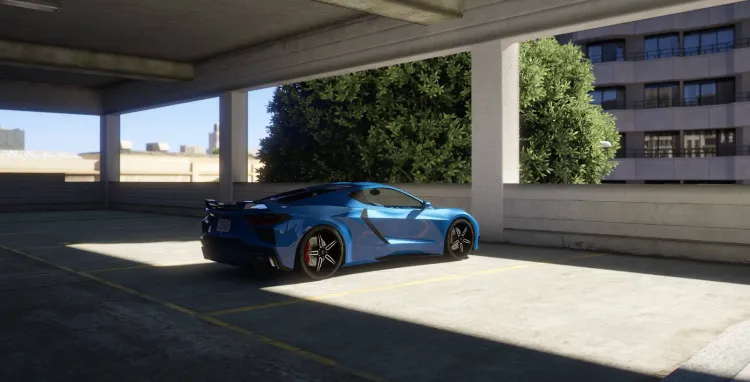
Grand Theft Auto V remains one of the most played open-world games years after launch, yet many players on budget hardware face persistent issues like frame drops, stuttering during driving sequences, and overall lag that ruins the experience in Los Santos. The good news is that targeted adjustments to graphics settings, combined with system-level optimizations, can deliver stable performance even on older PCs. This guide breaks down every key aspect of configuring GTA 5 for low-end setups, focusing on practical steps that prioritize smooth gameplay at 30 to 60 frames per second without requiring hardware upgrades.
Players with integrated graphics, 4GB to 8GB of RAM, or entry-level dedicated GPUs often see the game struggle due to high demands on CPU, GPU, and memory. By understanding the underlying causes and applying proven configurations, the title becomes fully playable in both story mode and GTA Online. The following sections cover requirements, preparation, detailed in-game options, advanced tweaks, and monitoring tools to ensure consistent results.
Understanding GTA 5 System Requirements and Low-End Hardware Challenges
Before diving into settings, it helps to align expectations with what the game officially demands. The official system requirements from Rockstar Games distinguish between the original Legacy version and the newer Enhanced edition, which adds ray-traced features and improved visuals but raises the bar for hardware.
For the Legacy version, minimum specs include Windows 10 64-bit, an Intel Core 2 Quad Q6600 or AMD Phenom 9850 processor, 4GB RAM, and a directX 10-compatible GPU like the NVIDIA 9800 GT or AMD HD 4870 with at least 1GB VRAM. Recommended specs step up to an Intel Core i5-3470 or AMD FX-8350, 8GB RAM, and GTX 660 or equivalent. The Enhanced edition tightens these further, requiring an Intel Core i7-4770 or AMD FX-9590, 8GB RAM, and a GTX 1630 or Radeon RX 6400 with 4GB VRAM as a baseline minimum.
On low-end PCs, common bottlenecks include insufficient VRAM for high-resolution textures, CPU strain from dense population simulation, and slow storage leading to long load times or hitches. Older hard drives exacerbate stuttering when streaming assets in the expansive map. Recognizing these helps prioritize changes that free up resources without sacrificing core gameplay elements like visibility and responsiveness.
Preparing the PC for Lag-Free GTA 5 Gameplay
Optimal performance starts outside the game. Updating graphics drivers ensures compatibility and unlocks performance improvements specific to GTA 5. NVIDIA and AMD regularly release game-ready drivers that address stuttering and frame pacing issues in this title. Users should download the latest versions directly from the manufacturer’s website and perform a clean installation to remove any conflicting older files.
Power settings also play a critical role. Windows should be set to High Performance mode to prevent the CPU or GPU from throttling under load. Disabling unnecessary background applications, such as browser tabs or overlay software, reduces RAM usage and CPU overhead that could otherwise cause frame drops during intense scenes. For systems with limited RAM, increasing virtual memory through Windows advanced system settings can help prevent crashes when VRAM limits are approached.
Installing the game on an SSD rather than a traditional HDD dramatically cuts down on texture pop-in and loading stutters, as the game streams large amounts of data from storage. Even on low-end setups, this single change often yields noticeable smoothness. Monitoring tools like MSI Afterburner or the in-game overlay can track CPU, GPU, and RAM usage to identify specific bottlenecks during play sessions.
Core In-Game Graphics Settings for Low-End PCs
The graphics menu in GTA 5 offers extensive control, and dialing in the right balance is essential for low-end hardware. Start by launching the game in windowed or borderless mode initially for easier adjustments, then switch to full screen once stable. Resolution should be lowered to 1280×720 or 1366×768 on most budget monitors to ease GPU load while maintaining playable clarity.
Texture Quality can often remain at Normal or High on systems with 2GB or more VRAM, as the difference between Normal and Very High is minimal in performance while preserving surface detail on vehicles and environments. Shader Quality benefits from staying at Normal or High, avoiding Ultra to prevent excessive lighting calculations that hit frame rates hard in urban areas.
Reflection Quality should be set to Normal or High, as lower values remove realistic water and window effects with little gain in FPS. Disable Reflection MSAA entirely, since it adds negligible visual improvement but consumes resources. Water Quality holds up well at High, delivering decent wave detail without major performance penalties.
Particles Quality performs best at Normal, reducing explosion and debris effects that spike during action sequences. Anisotropic Filtering can safely stay at 8x or 16x through the game menu or GPU control panel, as it sharpens textures at angles with almost no cost.
Post FX represents one of the biggest performance hogs, handling bloom, depth of field, and motion blur. Setting it to Normal or Very High provides a solid balance, cutting several frames per second off the Ultra preset while keeping the world looking vibrant. Ambient Occlusion adds realistic shadowing around objects and should remain at High or Normal for depth without excessive overhead.
Anti-Aliasing options require careful handling. Turn off MSAA and TXAA in favor of FXAA, which delivers edge smoothing with far less impact on frame rates. VSync should generally be disabled to unlock higher FPS, though enabling it can eliminate screen tearing on systems that hover near the monitor’s refresh rate.
Advanced Graphics Settings That Make the Biggest Difference
The advanced tab contains options that can transform performance on constrained hardware. Population Density and Population Variety should drop to 50 percent or lower to reduce the number of pedestrians and vehicles, directly alleviating CPU and GPU strain in crowded streets. Distance Scaling and Extended Distance Scaling need reduction to Normal or Low, minimizing distant object rendering that causes pop-in and frame drops during high-speed travel.
Grass Quality delivers one of the largest FPS gains when lowered to Normal or Low, especially in rural or park areas where dense foliage otherwise overwhelms the GPU. Shadow Quality works effectively at Normal with Soft or Sharp shadows, avoiding Very High or High Resolution Shadows that add detail at steep performance costs. Disable Long Shadows and Extended Shadow Distance for additional headroom.
Tessellation can remain at High or Very High on most low-end GPUs, as its impact remains small compared to other settings. High Detail Streaming While Flying should be turned off unless aerial gameplay is frequent, saving frames during helicopter or plane sequences.
For the Enhanced edition, users with slightly better hardware may experiment with selective ray-traced options at Low, but most low-end configurations benefit from keeping ray tracing completely off to maintain stability.
Fine-Tuning with Configuration Files and External Tools
Beyond the in-game menu, editing the settings.xml file located in the game’s documents folder allows manual overrides for even finer control. Lowering shadow-related values or forcing lower LOD settings can squeeze extra performance. Launch options added through Steam or the Rockstar Games Launcher, such as -frameLimit 0 or -disableHyperthreading on older CPUs, further optimize resource allocation.
GPU control panel adjustments provide another layer. NVIDIA users should enable maximum performance mode and set anisotropic filtering to 16x application-controlled. AMD users follow similar steps in Radeon Software to prioritize frame pacing. These tweaks complement in-game changes and often resolve micro-stuttering without altering visuals noticeably.
Comparison of Key Graphics Settings for Low-End Performance
The table below compares standard low presets against an optimized low-end configuration, highlighting typical FPS improvements observed across various budget hardware setups. Results vary by exact system, but these patterns hold based on benchmark data from multiple sources.
| Setting Category | Standard Low Preset | Optimized Low-End Recommendation | Expected FPS Gain | Visual Trade-Off |
|---|---|---|---|---|
| Resolution | 1920×1080 | 1280×720 or 1366×768 | +20-40 FPS | Reduced sharpness, still clear |
| Texture Quality | Normal | Normal to High | Minimal | Preserved detail |
| Shader Quality | Normal | Normal | +5-10 FPS | Slight flattening of lighting |
| Grass Quality | Normal | Low or Off | +15-30 FPS | Less dense foliage |
| Population Density | 100% | 50% or lower | +10-25 FPS | Fewer NPCs and vehicles |
| Post FX | Very High | Normal | +8-15 FPS | Reduced bloom and depth effects |
| Shadows | High | Normal with Soft | +10-20 FPS | Softer, less defined shadows |
| Distance Scaling | High | Low | +10-15 FPS | Earlier pop-in at range |
| Anti-Aliasing | FXAA On | FXAA On, MSAA Off | +5-12 FPS | Minor edge jaggedness |
| VSync | On | Off | +10-20 FPS | Possible tearing (fix with adaptive) |
This comparison illustrates how small, targeted reductions compound into significant smoothness gains while keeping the game recognizable and immersive.
Monitoring, Testing, and Iterative Adjustments
After applying changes, use the in-game benchmark accessible from the graphics menu to measure average and minimum frame rates across different scenarios. Tools such as MSI Afterburner overlay real-time metrics during actual gameplay, helping pinpoint whether CPU, GPU, or memory remains the limiting factor. Test in varied locations—busy city streets, highways, and countryside—to ensure consistent performance.
If stuttering persists after optimization, verify that the game runs in DirectX 11 mode for better scaling on modern low-end systems. Periodic driver updates and storage defragmentation (or SSD maintenance) keep results stable over time.
FAQ: Common Questions About GTA 5 on Low-End PCs
Can GTA 5 run smoothly on 4GB RAM?
Yes, but with heavy optimization. The Legacy version meets the minimum, yet 8GB delivers far better stability by reducing swapping to disk. Lower all population and distance settings aggressively to compensate.
Does lowering resolution always improve FPS?
It does in most cases, often providing the single largest boost on integrated or entry-level GPUs. Combine with other reductions for best results.
Should VSync stay enabled on low-end hardware?
Disabling it usually unlocks higher frame rates, though adaptive VSync through the GPU control panel can prevent tearing if needed.
How much does grass quality affect performance?
Grass ranks among the highest-impact settings, especially in open areas. Reducing it to Low or Normal frequently adds 15 to 30 frames per second with minimal loss in overall scene quality.
Will the Enhanced edition work on older PCs?
The Enhanced version raises requirements, but many low-end systems can still run it after similar optimizations, provided ray tracing remains disabled and resolution is scaled down.
What commandline tweaks help the most?
Options like -pedLodBias -1.0 and -vehicleLodBias -1.0 reduce NPC and vehicle detail at distance, easing CPU load significantly.
Is it worth using mods for low-end optimization?
Community-tested low-graphics mods can further streamline asset loading, but always source them from reputable repositories and test thoroughly to avoid conflicts.
Why does GTA 5 stutter even with low settings?
Stuttering often stems from storage speed, outdated drivers, or background processes rather than graphics alone. SSD installation and clean driver reinstalls resolve most cases.
How do I check if my PC meets Enhanced requirements?
Compare your hardware directly against the official Rockstar list, focusing on CPU, RAM, and GPU VRAM as the primary indicators.
Can overclocking help low-end systems?
Mild overclocking of CPU or GPU can add frames, but only after ensuring proper cooling and stability testing to avoid crashes or damage.
Conclusion: Achieving Smooth GTA 5 Gameplay on Budget Hardware
Configuring GTA 5 for low-end PCs requires a methodical approach that balances visual fidelity with raw performance. From verifying system requirements and preparing the operating system to fine-tuning every graphics slider and advanced option, each step contributes to eliminating lag and delivering enjoyable sessions in one of gaming’s most expansive worlds. The optimized settings outlined here consistently enable 30 to 60 FPS on hardware well below recommended levels, proving that thoughtful adjustments outperform raw power in many scenarios.
Experimentation remains key, as every PC configuration behaves slightly differently. Begin with the recommended low-end profile, run benchmarks in diverse locations, and iterate based on real-time metrics. Over time, these changes not only resolve immediate frustrations but also extend the usable life of older systems. Players can then focus on the story, heists, and online adventures rather than technical hurdles.
For those ready to push further, gradual hardware upgrades like additional RAM or an SSD offer compounding benefits alongside the settings tweaks. Ultimately, GTA 5 rewards persistence and smart optimization, turning potential frustration into reliable entertainment even on modest rigs. Apply these principles, monitor results, and enjoy the city of Los Santos without compromise.