So you’ve just loaded up Microsoft Flight Simulator on your Xbox console, and the world stretching below that cockpit window looks breathtaking — and also, completely overwhelming. Between the instrument panels, the radio chatter, the weather settings, and trying to figure out how not to nosedive a Boeing 747 into a mountain, there’s a lot happening at once. The good news? Every pilot starts somewhere, and the learning curve, while steep, is one of the most rewarding in gaming.
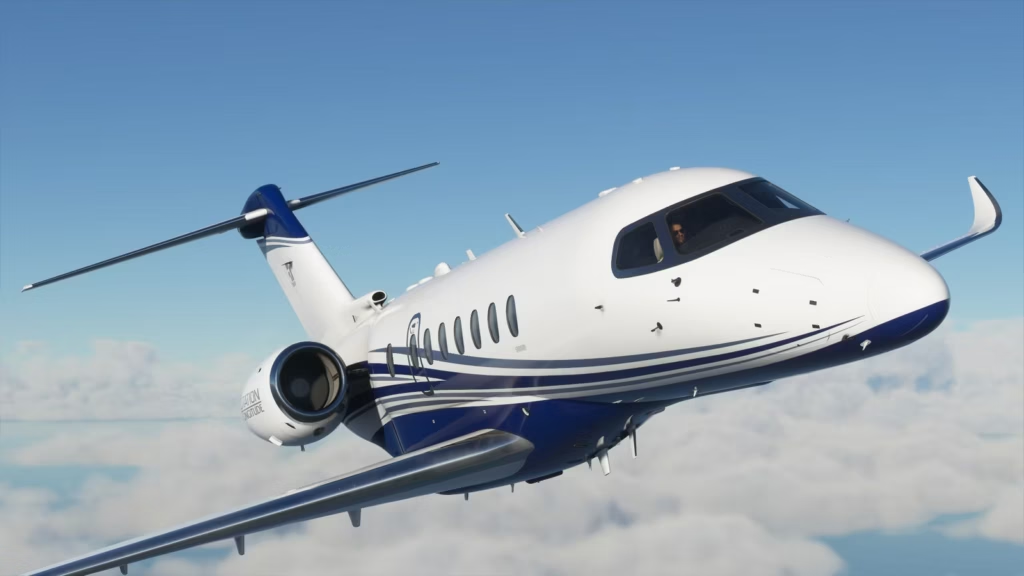
Microsoft Flight Simulator, developed by Asobo Studio and published by Xbox Game Studios, is widely regarded as the most technically authentic consumer-grade flight simulation ever released. It streams real-world satellite imagery from Bing Maps, incorporates live weather data, and models the physics of flight with a level of fidelity that actual pilots use for familiarization. When it launched on Xbox Series X|S in July 2021, it brought that experience to a whole new audience — console players who may have never touched a flight sim before. This guide is specifically built for that audience.
Why Xbox Makes Flight Simulation More Accessible Than Ever
Before Xbox, Microsoft Flight Simulator was the domain of PC enthusiasts with beefy rigs, yoke peripherals, and rudder pedals. The console release fundamentally changed who could experience serious flight simulation. With a standard Xbox controller — and some clever control mapping — new players can now manage cockpit functions that once required specialist hardware.
The Xbox Series X|S hardware provides enough processing power to run the simulation at impressive visual fidelity, and the streaming architecture means you’re loading a living, breathing recreation of the entire Earth. According to Microsoft’s official Flight Simulator page, the sim covers over two trillion trees, 1.5 billion buildings, and real-time air traffic — all rendered dynamically. What beginners on Xbox benefit from is a simplified but functional control scheme that prioritizes learning to fly over managing complex avionics from day one. That’s where this guide begins.
Understanding the Xbox Controller Layout for Flight Simulator
The Xbox controller becomes your cockpit when you’re starting out, and understanding what each button and stick does is foundational. The game’s default control scheme is designed with accessibility in mind, but it helps to know the logic behind it.
Left Stick — Controls pitch (nose up/down) and bank (roll left/right). Push forward to descend, pull back to climb, tilt left or right to bank.
Right Stick — Controls the camera view by default, though in certain configurations it can also handle yaw (rudder movement).
Right Trigger — Applies throttle (increases engine power).
Left Trigger — Reduces throttle.
D-Pad — Cycles through key cockpit functions including flaps, landing gear, and other systems depending on context.
Bumpers (LB/RB) — These toggle between different control modes and access secondary cockpit functions.
The simulator also supports Xbox-compatible flight sticks and yokes, including the Thrustmaster T.Flight Hotas One, which is officially compatible and significantly improves control precision. However, a standard controller is entirely sufficient for learning the basics, and many experienced sim players continue using it long term.
Starting with the Right Aircraft: Don’t Climb Into a Jumbo Jet First
One of the most common mistakes new players make is launching straight into a large commercial aircraft. The temptation is understandable — who doesn’t want to fly a 747 over the Alps? But those aircraft are complex systems that even experienced sim pilots spend weeks studying. Start small, start smart.
| Aircraft | Category | Why It’s Good for Beginners |
|---|---|---|
| Cessna 152 | Light piston | Slow, forgiving, simple instruments |
| Cessna 172 Skyhawk | Light piston | Industry standard trainer, widely documented |
| Pipistrel Virus SW 121 | Light Sport | Responsive and easy to handle |
| Robin Cap 10 | Aerobatic/Light | Fun, nimble, great for learning maneuvers |
| Icon A5 | Light Sport Amphibian | Scenic flying, very stable |
| Beechcraft Baron G58 | Twin-engine piston | Step-up aircraft for intermediate learners |
| Airbus A320neo | Commercial airliner | Suitable after mastering light aircraft |
| Boeing 747-8 | Heavy commercial | Advanced users only |
The Cessna 172 Skyhawk is the most-flown training aircraft in real aviation history, and its representation in the sim is detailed and instructive. Learning in it translates to intuitive understanding of how actual small planes behave.
The Landing Challenge: The One Thing Every Beginner Struggles With
Ask any new sim pilot what the hardest part of the game is, and the answer is almost universally the same: landing. It’s not a personal failing — it’s aerodynamics. Landing requires simultaneous management of throttle, pitch, bank angle, approach speed, flap settings, and runway alignment, all while the ground rushes up toward you. Here’s a simplified landing sequence for beginners flying a Cessna 172:
- Reduce throttle to idle at around 1,500 feet AGL — Begin the descent early. Don’t wait until you’re over the runway.
- Set flaps to 10 degrees — Flaps increase lift at slower speeds. On Xbox, this is typically done via the D-pad.
- Maintain 80–85 knots on final approach — Too fast and you’ll float past the runway. Too slow and you’ll stall.
- Set flaps to 20, then 30 degrees as you get closer — Each notch slows you further and increases drag.
- Aim to cross the runway threshold at 65–70 knots — Then gradually reduce throttle to idle.
- Flare gently at 10–15 feet — Pull back slightly to raise the nose. The main wheels should touch first.
- Apply brakes gradually — On Xbox, done through the left trigger once on the ground.
The AOPA (Aircraft Owners and Pilots Association) has extensive educational resources about real-world landing techniques that closely mirror what you’ll practice in the simulator, making it an excellent companion resource.
Beginner Mode vs. Realistic Settings: A Full Comparison
| Feature | Beginner/Assisted Mode | Realistic Mode |
|---|---|---|
| Crash Detection | Off | On |
| Auto-Rudder | Enabled | Disabled |
| Auto-Trim | Active | Manual |
| ATC Assistance | Simplified prompts | Full radio procedures |
| Engine Failure | Disabled | Enabled |
| Weather | Clear skies | Live real-world data |
| Instrument Failure | Off | Possible |
| Stall/Spin Behavior | Dampened | Accurate |
| Landing Aids | Visual guidance | ILS only |
| Best for | Complete newcomers | Intermediate+ pilots |
Starting in assisted mode is not a shortcut — it’s a pedagogical decision. Stripping away complexity lets beginners focus on the fundamentals of control and spatial awareness before layering in more realism. Each assistance setting can be toggled independently, allowing gradual, self-paced progression toward full realism.
Using the Flight Training Missions: Don’t Skip These
Microsoft Flight Simulator includes a built-in training program developed in collaboration with aviation professionals. These missions cover everything from basic aircraft familiarization to navigation and instrument flying. They’re not optional padding — they’re arguably the most valuable content in the game for new players.
- Discovery Flights — Scenic, low-pressure flights to a famous destination. Great for getting comfortable with aircraft feel.
- Flying Lessons — Narrated training missions with a virtual instructor covering take-off, turns, climbs, descents, and landings.
- Instrument Training — Introduces navigation using cockpit gauges rather than visual cues.
- Bush Trip Missions — Multi-leg cross-country adventures through remote terrain that combine navigation with stunning scenery.
The narrated lessons follow a structured curriculum aligned with real-world Private Pilot License training standards, as documented by the FAA. This is part of why the sim has genuine instructional value that extends beyond entertainment.
Navigating the World: VFR vs. IFR Flying
One of the first conceptual forks in the road for any new sim pilot is understanding the difference between Visual Flight Rules (VFR) and Instrument Flight Rules (IFR). VFR flying means you navigate primarily by looking outside — using landmarks, terrain, roads, and rivers to figure out where you are and where you’re going. This is how most beginners naturally start, and during the day with clear skies it’s approachable and intuitive.
IFR flying means you navigate using cockpit instruments — altimeters, attitude indicators, heading indicators, GPS, and navigation radio systems like VOR (VHF Omnidirectional Range). IFR allows flight through clouds, rain, and at night, but requires understanding a significantly larger set of cockpit systems. Most beginners should spend their first several hours flying VFR in good weather before attempting instrument navigation. The Sporty’s Pilot Shop online ground school provides free and paid resources that explain VFR navigation concepts in a way that maps directly to what MSFS teaches.
Working with Air Traffic Control (ATC) on Xbox
ATC in Microsoft Flight Simulator is one of its most immersive features, and also one of the most confusing for beginners. The system simulates real-world radio communication between pilots and controllers, including departure clearances, frequency changes, and approach instructions. On Xbox, you interact with ATC through a text menu system rather than voice commands (voice control is available on PC). Here’s a basic workflow:
- Before departure — Contact Ground control to request taxi clearance.
- Before takeoff — Contact Tower to receive takeoff clearance.
- After departure — You’ll be handed off to Departure control, then Center frequencies as you climb.
- On approach — Approach control provides vectors to line you up with the runway.
- On final — Tower clears you to land. After landing, Ground takes over for taxi to parking.
Beginners often find ATC overwhelming and turn it off initially. That’s a valid choice, but engaging with it — even imperfectly — accelerates the learning process considerably. The FAA’s Pilot’s Handbook of Aeronautical Knowledge (available as a free PDF) contains the real-world communication standards the sim faithfully models.
Top Settings to Adjust for a Better Beginner Experience on Xbox
Getting the settings right before your first flight makes a measurable difference in how enjoyable and educational the experience is. Navigate to Options → Assistance Options and consider these early-game configurations:
- Crash damage → Off (prevents frustrating restarts while learning)
- Auto-rudder → On (stabilizes the aircraft without requiring rudder input)
- ATC assistance → Simplified (reduces radio complexity)
- Instrument failures → Off (prevents unexpected system issues during learning)
For weather, start with clear skies and calm winds using the “Clear” preset. Wind adds complexity to take-off and landing that beginners don’t need during initial sessions. Once basic skills are established, gradually reintroduce wind and cloud cover to build real-world weather awareness.
Recommended Learning Path for Xbox Beginners
Week 1 — Orientation: Complete all Discovery Flights, explore the World Map, and fly VFR in a Cessna 172 around familiar cities or landmarks.
Week 2 — Core Skills: Work through the structured Flying Lessons, practice landing at small uncontrolled airports, and learn to use autopilot for straight-and-level cruise.
Week 3 — Navigation: Fly point-to-point routes using the built-in GPS, engage with ATC in simplified mode, and attempt your first Bush Trip in beginner-friendly terrain.
Week 4 — Complexity: Attempt IFR flying using autopilot and instrument approach procedures, experiment with different weather conditions, and explore the Xbox Marketplace for free add-ons.
Common Mistakes Beginners Make (And How to Avoid Them)
Too much throttle on take-off. Slamming the throttle causes the nose to yaw sharply. Auto-rudder compensates when enabled, but learning gradual power application builds better long-term habits.
Ignoring the checklist. The sim provides checklists for each aircraft phase. Skipping them leads to issues like taking off with the parking brake engaged or forgetting to retract flaps after departure.
Descending too late. Begin descent at roughly 3 miles per 1,000 feet of altitude to lose. Most beginners start far too late, arriving high and fast over the runway.
Refusing to use autopilot. Autopilot is a real aviation tool. Using it to hold altitude during cruise gives beginners mental bandwidth to study instruments and prepare for the next phase.
Only flying in perfect conditions. Once basic skills are established, adding 10–15 knot crosswinds during landing practice dramatically improves skill and confidence.
FAQ: Microsoft Flight Simulator on Xbox for Beginners
Q: Is Microsoft Flight Simulator free on Xbox Game Pass?
Yes — it’s available through Xbox Game Pass as part of the Ultimate library, making it accessible without an upfront purchase.
Q: Do I need a special controller or joystick?
No. A standard Xbox controller works well for beginners. The Thrustmaster T.Flight Hotas One is officially compatible and improves precision, but isn’t required.
Q: Can I fly real airports and real routes?
Yes. The simulator includes every major airport worldwide with real runway designations, ILS systems, and taxiway layouts. Any real-world commercial route can be replicated.
Q: Is there multiplayer on Xbox?
Yes. Live multiplayer places real pilots from around the world in your session as actual aircraft. Community events are also hosted through the sim’s live services.
Q: How realistic is the weather simulation?
With “Live Weather” enabled, the sim pulls real-time METAR data from weather stations globally, recreating actual conditions at airports worldwide at the time you’re flying.
Q: Can I pause mid-flight?
Yes. The full pause function is accessible from the menu — especially useful for consulting checklists or map orientation.
Q: What’s the best beginner airport to practice landings?
Flat airports with long runways and minimal obstacles work best. Options like Tucson International (KTUS) or Montgomery-Gibbs (KMYF) in San Diego offer ideal conditions for practice.
Q: Are there downloadable add-ons for Xbox?
Yes. The Xbox Marketplace offers free and paid add-ons including new aircraft, enhanced airports, and detailed city scenery, all accessible from the sim’s main menu.
Q: Does the game teach real aviation procedures?
To a significant degree. Training missions follow real-world frameworks, and aircraft systems match their real counterparts closely enough that flight training organizations use the sim for ground familiarization.
Q: What comes after mastering light aircraft?
Transition to twin-engine aircraft like the Beechcraft Baron, then turboprops like the Pilatus PC-12, before eventually progressing to jet airliners. Each step adds new systems and performance complexity.
Conclusion: The Sky Is Not the Limit — It’s the Beginning
Microsoft Flight Simulator on Xbox is more than a game. It’s a living, breathing model of Earth seen from the cockpit, rendered with a level of fidelity that was unimaginable on consoles just a few years ago. For beginners, the initial overwhelm is real — but it gives way to something genuinely rewarding: the experience of flying an aircraft with increasing competence, one flight at a time.
The path from fumbling through a first landing at a tiny regional airport to smoothly conducting an ILS approach through low clouds at a major international hub is measured in hours of practice. The sim is patient. It doesn’t penalize curiosity. Every failed landing is a data point, every smooth approach a milestone worth building on.
What makes the Xbox version particularly significant is how it democratized access to serious simulation. The console controller is a capable input device when you understand its mapping. The hardware handles the rendering. The game handles the physics. The pilot — however new — handles the aircraft. That division of responsibility is precisely what makes MSFS work as both an entertainment platform and a legitimate learning environment.
Start with the training missions. Fly small planes in good weather. Build mental habits around checklists, proper descent planning, and ATC communication at whatever pace feels right. Use the assistance options without hesitation — they exist for exactly this purpose. Explore the world, because the sim’s greatest feature is that “the world” is literally available, modeled in photorealistic detail from pole to pole.
Experienced virtual pilots often describe their first clean landing — gear down, on centerline, smooth touchdown, no bouncing — as one of the most satisfying moments in gaming. That moment is available to every beginner who puts in the time. The controls start making sense. The instruments begin telling a coherent story. The cockpit stops being a wall of confusion and starts being a workspace with a clear purpose.
For deeper learning, resources from the FAA, AOPA, and dedicated communities like the MSFS official forums offer real-world and sim-specific knowledge that continues long past the beginner stage. Use this guide as a reference, revisit it as you progress, and don’t underestimate the value the sim’s own training content provides.