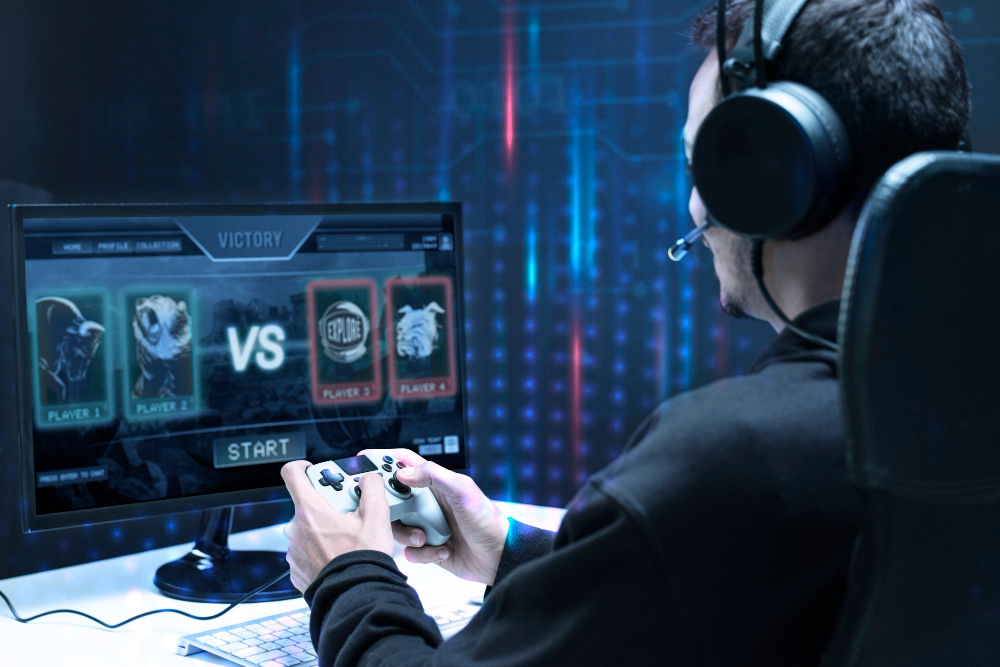
I still remember the feeling of absolute frustration, a perfectly lined-up headshot in Valorant, only for my bullet to register a split-second too late, costing us the round. That infuriating delay, that tiny chasm between my input and the on-screen action, is what we call input lag. If you’re serious about competitive gaming in 2026, understanding how to reduce input lag in FPS games is no longer optional; it’s the fundamental bedrock of performance. This isn’t just about faster reflexes; it’s about eliminating every single millisecond of artificial delay that stands between your intent and your in-game execution, giving you the undeniable edge you need to climb leaderboards and dominate your opponents.
Optimizing Your Hardware Foundation
The journey to minimal input lag begins with your physical hardware. Your monitor is perhaps the most critical component after your input devices. A high refresh rate (144Hz, 240Hz, or even 360Hz) combined with a low response time (1ms GTG or less) is non-negotiable for competitive FPS. This ensures that frames are displayed as quickly as your GPU can render them, and pixel transitions are instantaneous, reducing motion blur and perceived delay. Don’t forget technologies like NVIDIA G-Sync or AMD FreeSync, which synchronize your monitor’s refresh rate with your GPU’s frame output, eliminating screen tearing and further smoothing the visual experience without adding significant latency, unlike traditional V-Sync.
Beyond the display, your core PC components play a massive role. A powerful CPU, ideally with high single-core performance, ensures that game logic and physics are processed without bottlenecks, even in the most demanding titles of 2026. Your GPU needs to consistently push frames above your monitor’s refresh rate to maintain low system latency. Fast RAM with tight timings also contributes, as does an NVMe SSD, which drastically reduces load times and ensures game assets are streamed efficiently, preventing micro-stutters that can feel like lag. Investing in these foundational pieces creates a robust platform for ultra-low latency gaming.
Fine-Tuning In-Game Settings
Once your hardware is solid, diving into in-game settings is the next crucial step. The goal here is to maximize your frame rate (FPS) while maintaining playability. My rule of thumb is to prioritize FPS over graphical fidelity for competitive play. Lowering settings like shadows, anti-aliasing, post-processing effects, and disabling V-Sync (if you have G-Sync/FreeSync) are immediate wins. Textures and model detail can often be kept higher without impacting performance as much, but experiment. Many games also offer a “render scale” option; lowering this slightly can provide a significant FPS boost at the cost of some visual sharpness, but it might be worth it for that competitive edge.
Frame rate caps and advanced display settings within games also warrant attention. While uncapped FPS is often seen as ideal, capping your frames slightly below your monitor’s maximum refresh rate (e.g., 237 FPS on a 240Hz monitor) can sometimes result in smoother frame delivery and lower overall system latency, especially when using G-Sync/FreeSync. Avoid in-game V-Sync unless absolutely necessary to combat severe screen tearing, as it inherently introduces input lag. Some modern titles, like Call of Duty, offer “NVIDIA Reflex” or similar low-latency modes; always enable these. They optimize the rendering pipeline to reduce latency between your mouse click and the action appearing on screen, and from my experience, they are genuine game-changers.
Operating System & Driver Optimization
Your operating system is the silent partner in your gaming experience, and it can introduce significant input lag if not properly configured. Windows 10/11’s “Game Mode” is generally beneficial, prioritizing game resources, but ensure background apps are kept to a minimum. Disable unnecessary startup programs and scheduled tasks. Set your power plan to “High Performance” or “Ultimate Performance” (if available) to prevent your CPU from downclocking. Regularly check for Windows updates, but be cautious of major feature updates that might introduce new bugs; sometimes waiting a week or two after release is a safer bet, as recommended by forums like r/buildapc.
Drivers are the communication bridge between your hardware and software, and outdated or faulty drivers are a notorious source of input lag and performance issues. Always keep your GPU drivers updated to the latest stable version directly from NVIDIA or AMD’s official websites. Chipset drivers, monitor drivers, and even peripheral drivers (for your mouse and keyboard) should also be checked periodically. Some manufacturers offer specific “gaming mode” drivers or firmware updates for their peripherals that can further reduce latency. It’s a small detail, but these cumulative optimizations truly add up for a noticeable difference in responsiveness.
The Case for Minimalist OS
For the truly hardcore competitive player, a minimalist operating system installation can yield marginal but measurable gains. This involves stripping down Windows to its bare essentials, removing telemetry, bloatware, and unnecessary services that run in the background. While not for everyone due to the technical complexity and potential for instability, custom Windows installations or even lightweight Linux distributions (for games that support them well) can free up CPU cycles and reduce system overhead, leading to a fraction of a millisecond improvement in input latency. This extreme optimization is typically reserved for esports professionals and those pushing the absolute limits of performance in 2026.
Peripheral Precision & Connectivity
Your peripherals are your direct interface with the game, and their quality and connection method are paramount. Invest in a gaming mouse with a high polling rate (1000Hz or higher) and a low-latency sensor. The same goes for your keyboard; mechanical keyboards with fast switches and high polling rates are generally preferred. While wireless technology has come a long way, for the absolute lowest latency, a wired connection for both your mouse and keyboard is still often the gold standard. Wireless mice like the Logitech G Pro X Superlight 2 come very close, but a direct USB connection eliminates any potential for wireless interference or minuscule processing delays.
Connectivity extends to your display as well. Always use the appropriate display cable – DisplayPort 1.4 or HDMI 2.1 are essential for high refresh rates and resolutions. Ensure your cable is of good quality. For USB peripherals, connect them directly to your motherboard’s USB ports, ideally USB 3.0 or higher, rather than through a USB hub. Hubs can introduce tiny amounts of latency, especially if they are unpowered or shared with many devices. Even the choice of which USB port on your motherboard can sometimes make a difference; try different ones if you suspect an issue, as some are managed by different controllers.
Network Latency: The Internet Factor
While often conflated with input lag, network latency (ping) is the delay between your computer and the game server. It’s a distinct but equally critical factor in competitive FPS. Always use a wired Ethernet connection to your router instead of Wi-Fi. Ethernet provides a more stable, faster, and lower-latency connection, eliminating the packet loss and interference inherent in wireless. Your router’s quality also matters; a modern, high-performance router with Quality of Service (QoS) settings can prioritize game traffic over other network activities, ensuring your pings remain stable even when others are streaming or downloading.
Your Internet Service Provider (ISP) and geographical location relative to game servers also heavily influence network latency. Choose an ISP known for low latency in your region. Playing on servers geographically closer to you will always result in lower ping. While VPNs can sometimes help bypass ISP routing issues, they typically add latency themselves, so use them judiciously. For a deep dive into network optimization, resources like Speedtest.net’s blog offer excellent insights into understanding and improving your connection. Remember, even with perfect input lag reduction, high ping will still make your game feel unresponsive.
Key Takeaways
- Hardware First: Invest in a high refresh rate, low response time monitor, a powerful CPU/GPU, fast RAM, and an NVMe SSD to form the foundational bedrock of low-latency gaming for 2026.
- In-Game Optimization: Prioritize frame rate by lowering non-essential graphical settings, enable low-latency modes like NVIDIA Reflex, and use G-Sync/FreeSync over traditional V-Sync for tear-free, responsive gameplay.
- System Hygiene: Keep your operating system lean by minimizing background processes, using high-performance power plans, and always updating GPU and peripheral drivers from official sources.
- Peripheral & Network Discipline: Use wired, high polling rate gaming peripherals, connect them directly to motherboard USB ports, and always prefer a wired Ethernet connection to your router for stable, low-ping online play.
Frequently Asked Questions
Is V-Sync always bad for competitive FPS games?
Generally, yes. While V-Sync eliminates screen tearing, it does so by synchronizing frame delivery with your monitor’s refresh rate, which inherently introduces input lag. For competitive play, it’s almost always better to use adaptive sync technologies like G-Sync or FreeSync, or to simply tolerate minor tearing if you don’t have those options, to maintain the lowest possible input latency.
Does a faster CPU always help reduce input lag, even if my GPU is already bottlenecked?
A faster CPU can still help, even if your GPU is the primary bottleneck for raw frame rate. The CPU is responsible for game logic, physics, AI, and preparing frames for the GPU. A more powerful CPU can process these tasks quicker, reducing “CPU-bound” latency, which is the time it takes for the CPU to process your input and send instructions to the GPU. This means your inputs are registered and acted upon faster, even if the GPU can’t render the final frame any quicker.
What about custom firmware or third-party tools to reduce lag?
While some specialized tools or custom firmware for peripherals (like mice or keyboards) claim to reduce latency, they often come with risks. Using unofficial software can lead to instability, security vulnerabilities, or even bans in anti-cheat protected games. I generally advise sticking to official drivers and validated in-game/OS settings. Any marginal gains from unverified third-party solutions are rarely worth the potential headaches or risks.
How important is my internet speed for input lag?
Internet speed (bandwidth) is less critical for input lag than internet stability and latency (ping). A very fast internet connection won’t necessarily give you lower ping than a slower but stable one. What matters most is a low, consistent ping to the game server, which is primarily influenced by your physical distance to the server, the quality of your ISP’s routing, and using a wired connection. High bandwidth is useful for downloading games and updates, but not for reducing the delay in real-time gameplay.
Conclusion
Reducing input lag in FPS games is a multi-faceted endeavor, a relentless pursuit of perfection across hardware, software, and network. It’s about meticulously optimizing every link in the chain from your mouse click to the on-screen action, giving you an edge that can feel almost unfair. By systematically addressing each of the areas discussed, you’re not just improving your K/D ratio; you’re future-proofing your competitive setup for the demands of 2026 and beyond. Embrace the journey of optimization, and you’ll find yourself reacting faster, performing better, and truly mastering your favorite FPS titles.